 Purple Sector
RaceChrono data analysis
Read a RaceChrono session step by step: mark bad laps invalid, compare to a reference lap, read the delta and speed graphs, then open a VBO on a PC or Mac.
To analyse a RaceChrono session, open it in the app, mark the out lap and in lap invalid, compare a typical lap with your best and read the time delta graph alongside speed on the synchronised graph and map. The delta graph and data exports are in RaceChrono Pro; the free Android app has the graph and map. On a computer, export a VBO or CSV from RaceChrono Pro and open it in lap analysis software.
Purple Sector is one of the tools on this page. Purple Sector has no commercial relationship with RaceChrono or any other brand on this page.
Free or Pro: what can I analyse?
From RaceChrono’s own feature table and the Australian store listings, checked 24 October 2026. A dash means not included.
| RaceChrono (free, Android) | RaceChrono Pro (iPhone, Android) | |
|---|---|---|
| Price | Free, with in-app purchases | A$29.99 on the App Store, A$31.99 on Google Play |
| Laps, sectors and optimal lap | Yes | Yes |
| Graph and map, synchronised | Yes | Yes |
| Time delta graph | – | Yes |
| Video and comparison video | – | Yes |
| Data export (VBO, CSV, NMEA, ODS) | – | Yes |
On Android, the free app’s Pro upgrade unlocks the same feature set as RaceChrono Pro. Android and iOS licences are separate purchases.
1. Which laps can I compare?
Start with the lap list. Mark the out lap, the in lap and any lap with bad GPS invalid: RaceChrono then keeps them out of the best and optimal lap. What’s left are the laps you can compare.
2. Which lap is the reference?
RaceChrono compares every lap with a comparison lap, which is the session’s best lap unless you choose another. Its getting-started guide (2018) also lets you add reference laps and pick one as the base. Use your best lap as the reference and one typical lap from the same session to compare with it.
3. Where is the time going?
Switch the lap list to Sectors mode. Each sector is red where it’s slower than the reference lap, green where it’s faster and grey where there’s no difference. The sector that stays red on most laps is where to look.
In RaceChrono Pro, the time delta graph shows the same thing along the whole lap: where it climbs, the compared lap is losing time; where it falls, it’s gaining.
4. What does the speed trace show at those corners?
Open the session in the Analysis screen and choose the channels on the graph in its settings. RaceChrono Pro’s analysis scrolls the graph, map and video together. At the corners where time goes, read speed for three things:
- Where the speed starts to fall: where you braked or lifted. GPS alone can’t tell which.
- The lowest point: the minimum corner speed.
- The climb out: how early the speed rises again.
A lower minimum or a later climb on the typical lap shows where the time went. Map tiles in the Analysis screen need an internet connection.

5. How do I analyse RaceChrono data on a computer?
RaceChrono only runs on phones and tablets. Its own suggestions for a PC or Mac are to share the session as an .rcz file and upload it to Serious-Racing, or to export a .vbo and open it in RaceLogic Circuit Tools.
Purple Sector opens the VBO, the CSV or a shared .rcz in a browser on a PC or Mac. See RaceChrono export.
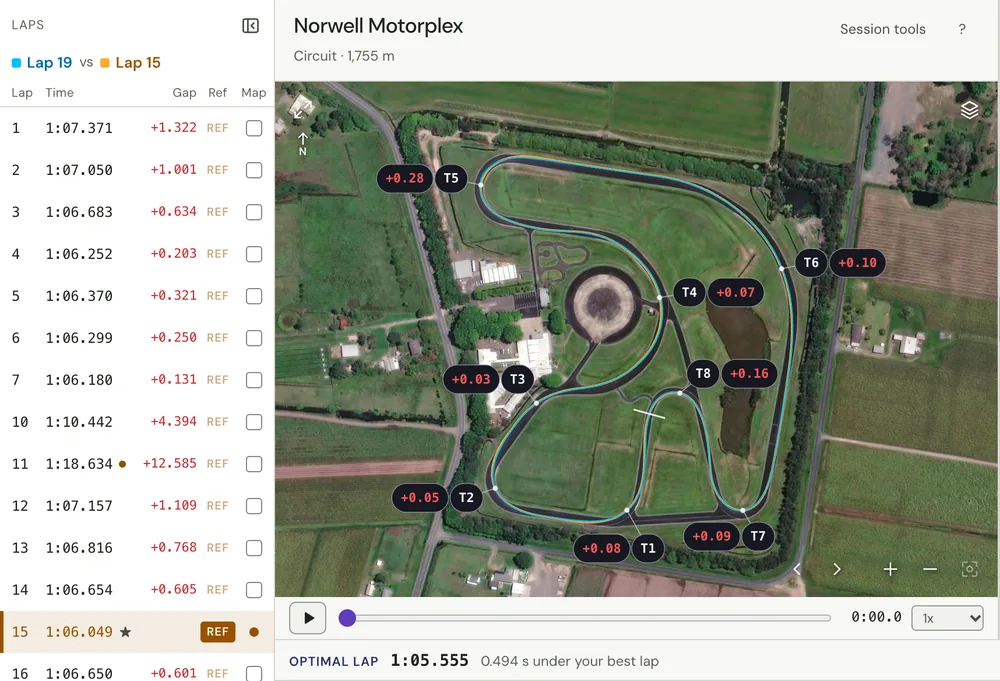
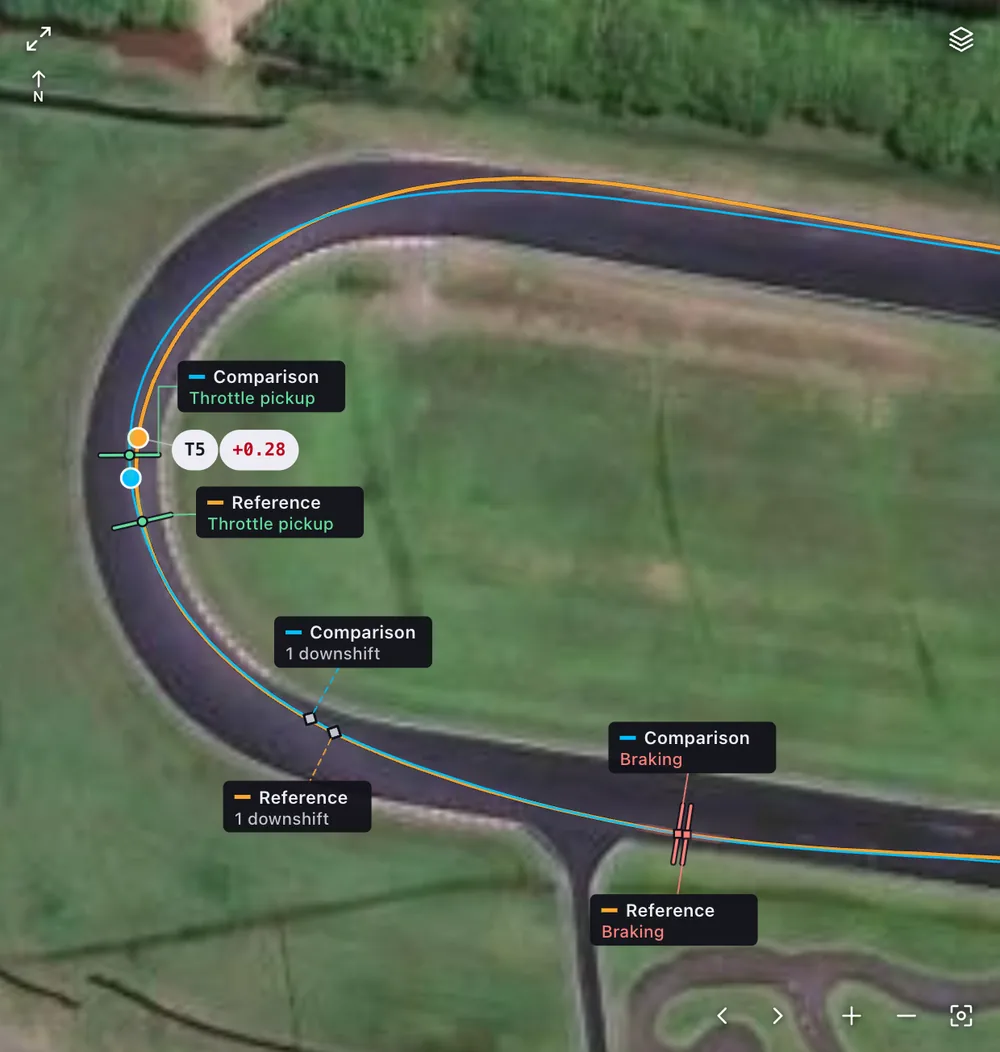
Once it’s open, Purple Sector shows the gap to your best at every turn, the speed traces, a close-up of each corner with both lines, the Corner times tab and the optimal lap. The AI Coach debrief names the corner that cost the most and one thing to try there.
Which GPS should I record with?
RaceChrono’s top recommended external GPS is the RaceBox Mini or Mini S, which updates at 25 Hz and has a built-in motion sensor. Popular Bluetooth receivers such as the Qstarz BT-Q818XT don’t work with RaceChrono on iPhone. See lap timer apps compared.
Questions
Does the free RaceChrono have a delta graph?
No. RaceChrono’s feature table lists the time delta graph and predictive lap timing in RaceChrono Pro only. The free Android app has the synchronised graph and map, sectors and the optimal lap.
Is there a RaceChrono analysis pack?
RaceChrono doesn’t sell one: the iPhone Pro app lists no in-app purchases, and on Android the free app’s Pro upgrade unlocks the full Pro feature set, analysis included.
Can I use RaceChrono on a PC or Mac?
No, RaceChrono runs only on phones and tablets. Export a VBO or CSV from RaceChrono Pro, or share the session as an .rcz, and open it in analysis software on the computer.
How do I compare a lap with my best in RaceChrono?
RaceChrono’s getting-started guide: open the lap’s menu, choose Compare to best, then double-tap the lap time to compare the whole lap, or a split time to compare that split.
Does a RaceChrono session open in Purple Sector?
Yes: a VBO or CSV export from RaceChrono Pro, or a shared .rcz. The .rcz is supported but not yet checked against a customer’s file, and its CAN channels arrive unnamed.
More: RaceChrono export · RaceBox data analysis · Lap timer apps compared · Optimal lap time · Track day telemetry for beginners · How to compare laps
Sources, checked 24 October 2026
- RaceChrono’s feature table: the free Android app has laps, sectors, the optimal lap and the graph and map; Pro adds video, predictive timing, the time delta graph and exports (ODS, NMEA, VBO, CSV): racechrono.com
- RaceChrono Pro on the App Store: synchronised graph, X/Y graph, map, video and comparison video; A$29.99, no in-app purchases: apps.apple.com/au/app/racechrono-pro/id1129429340
- RaceChrono Pro A$31.99 on Google Play: play.google.com/store/apps/details?id=com.racechrono.pro&gl=AU&hl=en_A
- The free Android app: free with in-app purchases: play.google.com/store/apps/details?id=com.racechrono.app&gl=AU&hl=en_A
- The Pro upgrade unlocks the Pro feature set; licences are per platform; mobile devices only; .rcz to Serious-Racing or .vbo to Circuit Tools; RaceBox Mini or Mini S the top external GPS, 25 Hz with a motion sensor; Qstarz BT-Q818XT not on iOS; map tiles need internet: racechrono.com/support
- Getting started (2018): the comparison lap defaults to the best; reference laps; Sectors mode in red, green and grey; the Analysis screen and its channel settings; Compare to best; invalid laps kept out of the best and optimal lap: racechrono.com/wp-content/uploads/2018/10/RaceChrono-getting-started.p
- Purple Sector opens VBO, CSV and .rcz; .rcz not yet checked against a customer’s file; CAN channels unnamed: purplesector.dev/guides/racechrono-exports
- Purple Sector’s optimal lap and Corner times tab: purplesector.dev/guides/optimal-lap-time