 Purple Sector
Analyse TrackAddict sessions in your browser
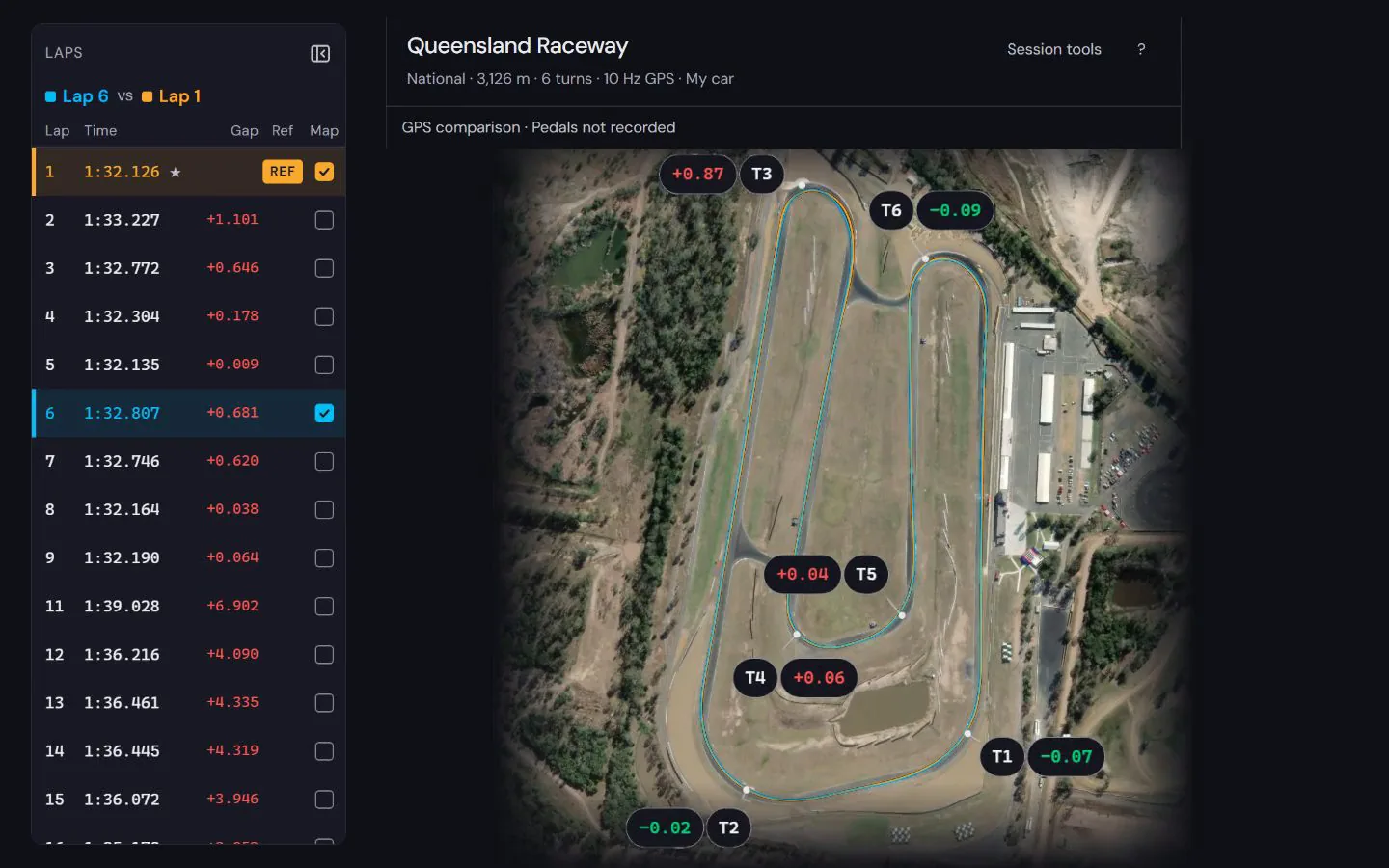
Share a TrackAddict session as CSV or VBO, open it in your browser and compare laps against your quickest.
- .csv
- .vbo
How do I get the session file from TrackAddict?
Bring: the session shared as “Interpolated CSV” (or “.VBO”)
On a computer
- In TrackAddict on your phone, share the session as “Interpolated CSV” or “.VBO” and send it to your computer.
- Open it here.
On a phone
- In TrackAddict, tap the “Sessions” folder icon and open the session.
- Tap “Share” and choose “Interpolated CSV” (or “.VBO”).
- Choose “Save to Files” (iPhone) or Downloads (Android).
- Back here, open your lap file and pick it from “Recents” (iPhone) or Downloads (Android).
Watch out: The free edition keeps only three recordings. Export before you record a fourth.
Vendor instructions: TrackAddict documentation
What else should I know about the file?
Which TrackAddict export should I use?
The CSV export (Interpolated CSV) or the VBO export of the session. Either opens.
What do I see once the file opens?


See how to read the speed and time difference in a worked lap comparison at Norwell, using a public sample recording and its stated evidence limits.
How to compare laps · Circuit maps
Next: Lap timer apps compared · Track day telemetry for beginners
Popular circuits: Mount Panorama · Phillip Island · Sydney Motorsport Park · The Bend Motorsport Park · Albert Park Grand Prix Circuit · Adelaide Street Circuit · Lakeside Park · Calder Park Raceway · all circuit maps.